Complete Guide to Building Desktop Database Apps in C# with WinForms and SQLite

Creating desktop applications that connect to a local database is a common task for developers building tools, utilities, or data management apps. One of the most accessible stacks for this purpose is C# with Windows Forms (WinForms) and SQLite ,a lightweight, serverless database engine that stores data directly on disk.
In this guide, we’ll walk through how to build a simple but functional desktop application using C#, WinForms, and SQLite,
Source codes
C# Source codes for Building C# SQLite Database CRUD applications for Beginners can be found here.
Code Published under MIT License
What You'll Build

By the end of this tutorial, you’ll have a Windows Forms application that:
Loads an existing SQLite database file from disk
Connects to that database using a standard connection string
Displays the data from a selected table using a DataGridView
Tools & Technologies
To follow along, you’ll need:
Visual Studio Community Edition (recommended for its built-in GUI designer)
.NET Framework or .NET Core (depending on project type)
System.Data.SQLite.Core NuGet package
While it's possible to use the .NET CLI for building the app, Visual Studio simplifies the design process with drag-and-drop support for WinForms controls.
Platform Compatibility
It’s important to note: WinForms is a Windows-only UI framework, primarily supported on Windows 10 and 11. For cross-platform applications, alternative frameworks like WPF or MAUI should be considered.
Setting Up the Project
Create a new Windows Forms App in Visual Studio targeting .NET 6 or later.
Use NuGet Package Manager to install:
System.Data.SQLite.CoreOpening an Existing SQLite Database
Instead of creating a new database, this app allows users to open an existing .sqlite or .db file using a standard file picker dialog.
Step 1: Add an OpenFileDialog
Drag and drop an OpenFileDialog control onto your form (or create it in code), allowing users to browse for a file:
OpenFileDialog openFileDialog = new OpenFileDialog();
openFileDialog.Filter = "SQLite files (*.db;*.sqlite)|*.db;*.sqlite";
Step 2: Establish the Connection
Once a file is selected, retrieve its path and open a connection using a standard connection string:
string dbPath = openFileDialog.FileName;
string connectionString = $"Data Source={dbPath};Version=3;";
using (SQLiteConnection conn = new SQLiteConnection(connectionString))
{
    conn.Open();
    // Perform DB operations
}
Displaying Data in a DataGridView
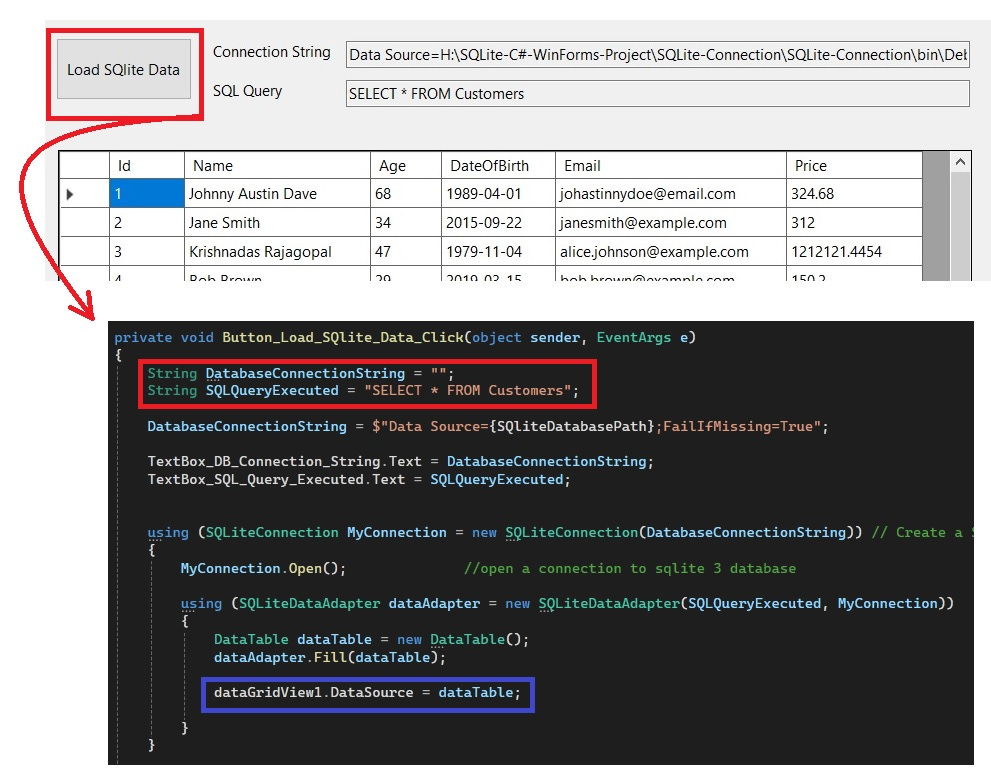
A key feature of this application is showing data in a user-friendly grid. WinForms includes a DataGridView control perfect for this.
Fetch and Display Data
Use SQLiteDataAdapter to retrieve table data and load it into a DataTable. Then, bind the result to your DataGridView.
SQLiteDataAdapter adapter = new SQLiteDataAdapter("SELECT * FROM YourTableName", conn);
DataTable dt = new DataTable();
adapter.Fill(dt);
dataGridView1.DataSource = dt;
Components Used:
SQLiteDataAdapter– Retrieves data from the database and fills theDataTable.DataTable– In-memory representation of the database table.DataGridView– Displays the data in a structured, editable table on the form.
This setup allows users to view and potentially modify data directly in the interface.
Building a desktop app with C# and SQLite is both practical and beginner-friendly. With a small footprint and powerful tools, SQLite offers a great way to manage structured data locally without the need for a full-scale database server.
By combining it with the WinForms framework, you can quickly develop intuitive user interfaces for interacting with databases, ideal for internal tools, data browsers, or simple productivity apps.